


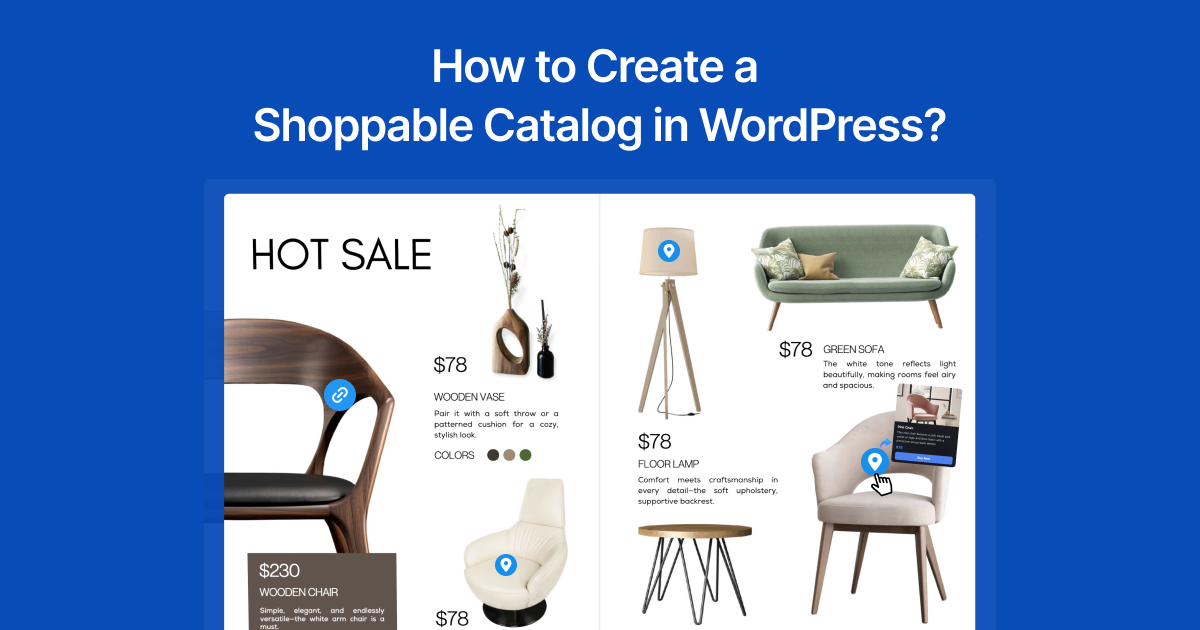
Most product catalogs are still treated like static files. You upload a PDF catalog on your WordPress website and hope visitors scroll through pages and notice your products. But buyers expect something faster, easier, and more interactive. They want to explore products, tap on what interests them, and move directly from discovery to purchase without friction. That’s why a shoppable catalog makes the shopping experience interactive and delivers exactly what shoppers expect.
Let visitors flip through your catalog like a real magazine and buy instantly without leaving the page. No extra clicks, no redirects, and no friction. Shopping becomes completely hassle-free. You can turn a regular PDF catalog into an interactive experience by adding hotspots over products, featured items, or key sections. These hotspots make each page more engaging and more useful, because visitors can click on a product and go straight to its product page or cart. Instead of reading a catalog passively, your audience starts interacting with it like a storefront.
Let’s learn how to turn your catalog into an effective sales tool with this simple guide.
What is a Shoppable Catalog?
A shoppable catalog is an interactive digital publication that allows viewers to browse and purchase your products without leaving the catalog. Think of this as a digital version of a printed retail catalog, but with one revolutionary difference: every product is clickable.
Traditional PDF catalogs make buying hard. Customers have to leave the catalog and search your store manually just to find a product. That journey kills conversions. Every extra step between interest and purchase is a step where customers drop off. A shoppable catalog removes those steps entirely. The product is right there. The button is right there, and the sale is completed right there as well.
Why Shoppable Catalogs Drive More Sales?
The statistics behind interactive content are compelling. Research consistently shows that interactive content generates two to three times more engagement than static content. Spending more time browsing is directly linked to a higher willingness to purchase.
A shoppable catalog feels like a premium brand experience. A great product presentation makes a strong first impression. It tells shoppers that your brand cares about quality and professionalism. Retail experts have known for years that the easier it is to buy, the more sales you make. Fewer steps to checkout mean more happy customers.
Shoppable catalogs collapse what used to be a multi-step journey into a single moment. Visitors see an item, click it, and instantly view the details or open the product page without ever leaving the catalog. That perception of quality makes buyers more confident in their purchase decisions.
What is a Hotspot?
A hotspot is a clickable area placed on top of a product or image in your catalog. In simple words, it is a point that visitors can tap or click to take action. Hotspots can open a product page, send items to a cart, show quick details, or pop up extra content.
Shoppable catalogs use hotspots so shoppers can tap an item and go straight to the product page or cart. This turns a basic visual brochure or catalog into a direct sales tool that drives instant purchases.
Why Do Hotspots Matter?
Hotspots reduce the distance between interest and action. If a visitor likes a jacket, a chair, a cosmetic item, or a course bundle, they should not have to search your website for it later. A hotspot lets them act immediately while the product is still in front of them.
This matters because every extra step creates drop-off. Static catalogs make people do extra work by remembering item names and searching your store manually. Hotspots fix this problem by creating a quick, simple path from viewing a product to making a purchase.
How to Create a Shoppable Catalog With Clickable Hotspots
Building a shoppable catalog is a straightforward process that does not require any design or coding skills. We only need one WordPress plugin, and that is TNC FlipBook 3D. Here is the complete step-by-step walkthrough.
Step 1: Prepare Your PDF Catalog
Start with a well-designed PDF catalog. This can be an existing catalog you already use in print or a new one created in Canva, Adobe InDesign, Figma, or any PDF creation tool. Make sure your product images are high resolution, and your layout has clear visual areas where you want to place hotspots. The better your catalog design, the more professional your shoppable experience will feel.
Step 2: Create Your FlipBook
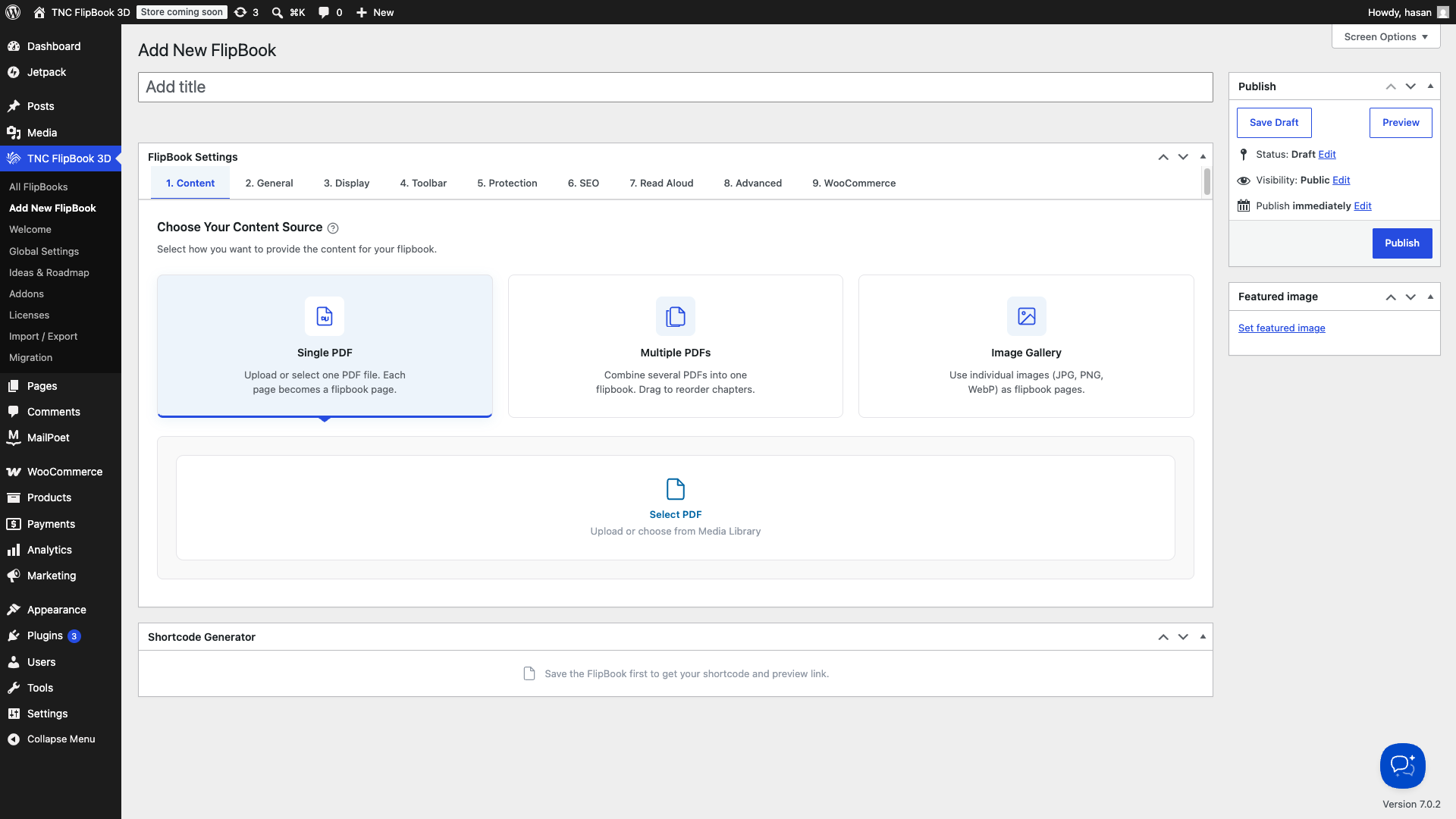
Go to your WordPress dashboard and navigate to TNC FlipBook 3D > Add New. Give your FlipBook a name, upload your PDF catalog, and configure your basic settings, including flip style, color scheme, and toolbar options. Click Save to create your FlipBook. At this point your catalog is already transformed into a beautiful 3D flipbook. Now you need to make it shoppable.
Step 3: Open the Hotspot Editor
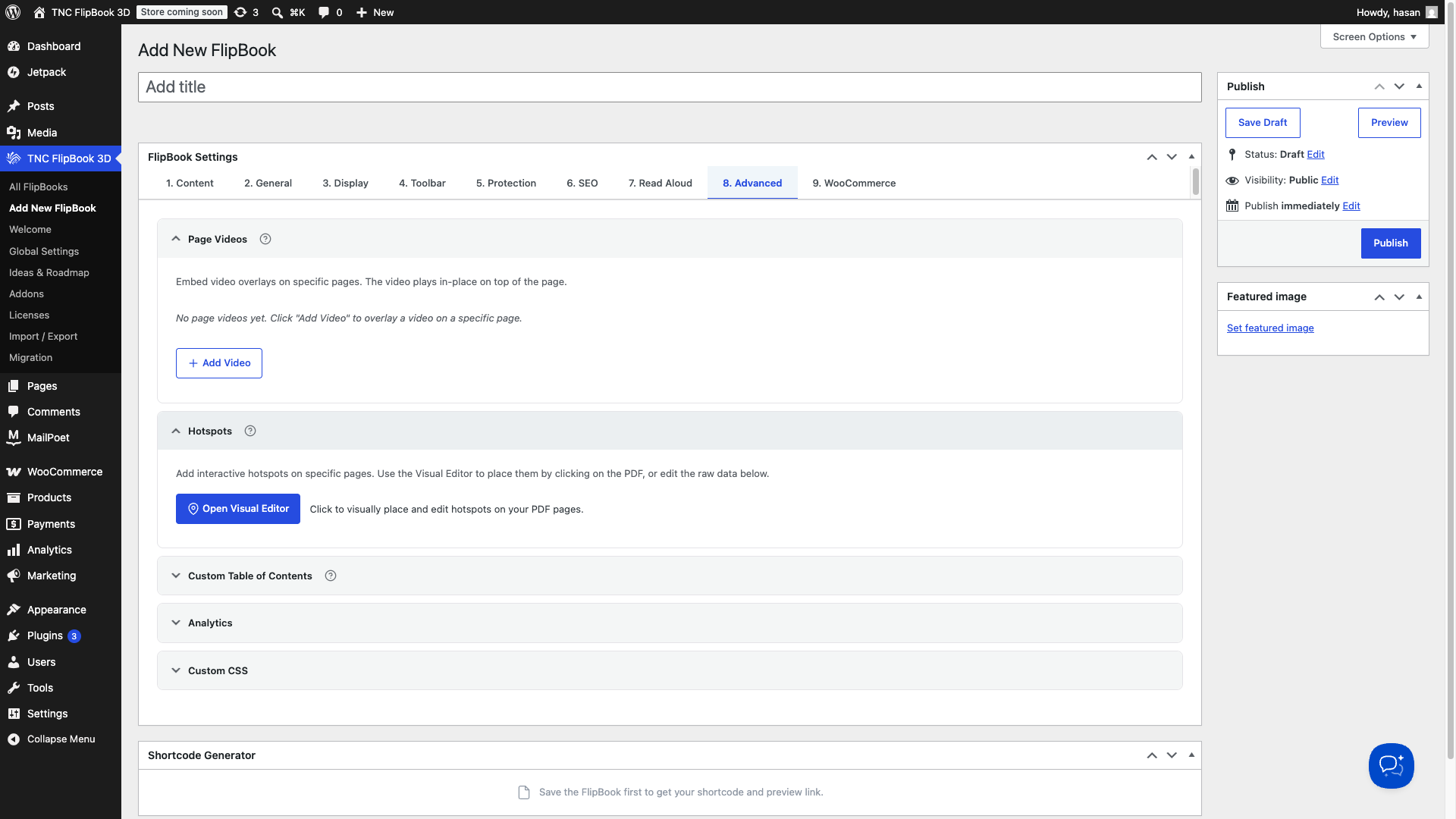
Inside your FlipBook settings, find the Hotspots section. You will see several tabs within your FlipBook settings, navigate to the Advanced tab among them. Click Open Visual Editor to open the hotspot editor for your FlipBook. The editor displays your FlipBook pages and gives you a visual interface to place and configure your hotspots.
Step 4: Place Your Hotspot
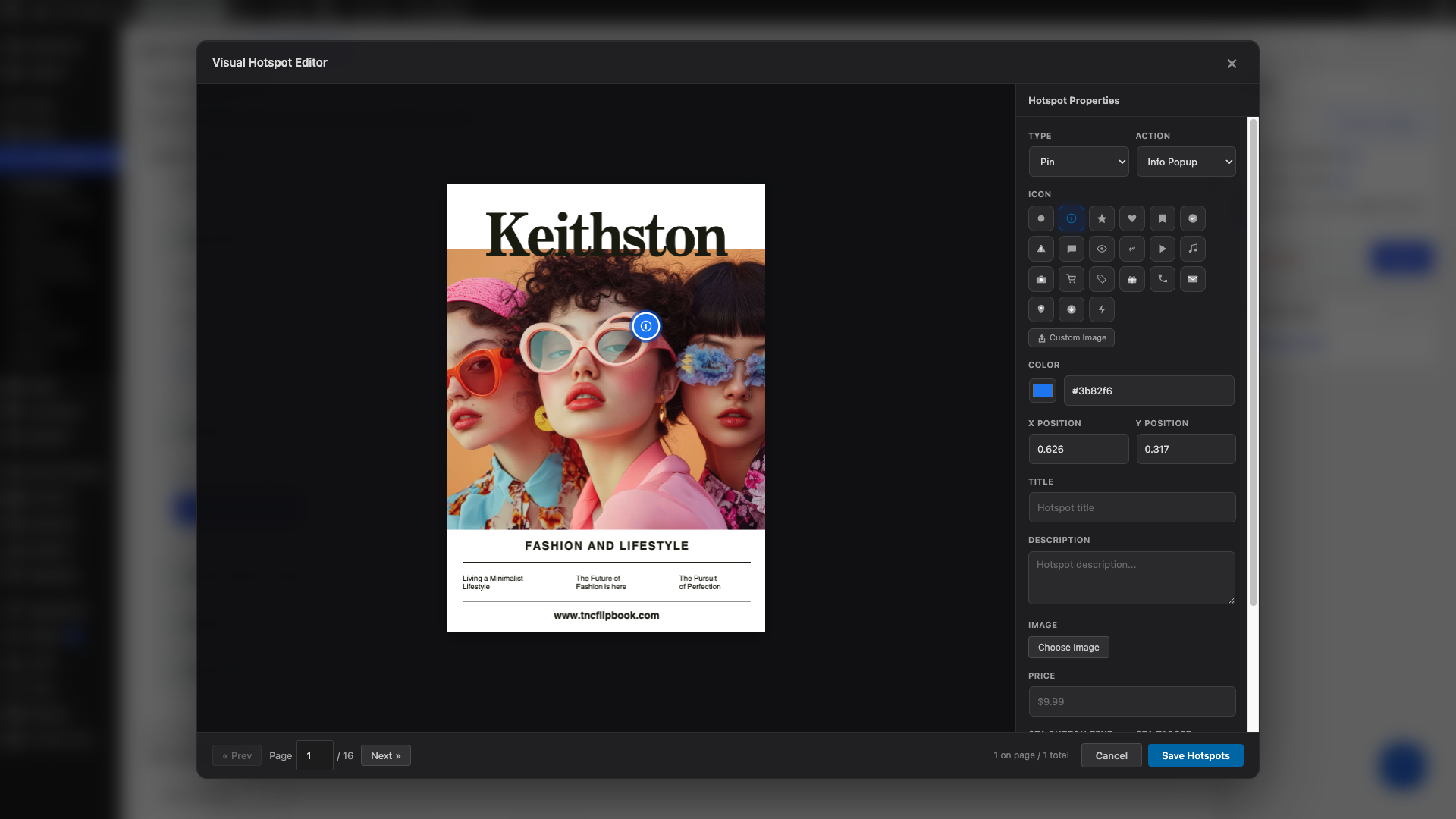
Select the page where you want to add a hotspot. Double-click on the PDF page to add a hotspot. Click and drag on the page to draw a hotspot zone over a product image or area. You can resize and reposition it until it sits precisely over the clickable area you want. Give the hotspot a descriptive name so you can identify it later when managing multiple hotspots across a large catalog.
Step 5: Configure the Hotspot Action
This is where you decide what happens when a visitor interacts with your hotspot. For a shoppable catalog, the most effective options are:
TYPE: Selects the visual style or form of the hotspot. You can select by PIN or area.
ACTION: Defines what happens when a user clicks or hovers over the hotspot. You can select any of the following: an info Pop-up, a Link/URL, Jump to Page, or Media. Each of these will show various options for customization.
ICON: Lets you choose a predefined icon from the grid or click Custom Image to upload a unique icon graphic.
COLOR: Changes the display color of the hotspot icon using a color picker or by entering a HEX code.
X POSITION / Y POSITION: Controls the precise placement of the hotspot on the page using numerical horizontal (X) and vertical (Y) coordinates. You can adjust these manually or drag the hotspot on the page.
TITLE: Enters the main heading text that appears in the popup or tooltip when the hotspot is activated.
DESCRIPTION: Adds detailed text, explanations, or context inside the hotspot’s popup display.
IMAGE: Allows you to click Choose Image to attach a photo or graphic to display within the hotspot popup.
PRICE: Sets a cost or price tag for products featured inside the hotspot display.
CTA BUTTON TEXT: It determines the label displayed on the action button inside the pop-up, such as ‘Buy Now’, ‘Learn More’, or ‘View Details’.
CTA TARGET: It controls how a link opens when clicked. For example, in a new tab or the same tab.
CTA URL: This specifies the destination web address where users will be taken after clicking the button. Such as a direct link to purchase a product or any other link of your choice.
That’s it, you can add multiple hotspots with various types and actions. Once you have set everything up according to your needs, simply click ‘Save Hotspot’ to finish.
Step 6: Publish and Embed
Once all your hotspots are set, copy your FlipBook shortcode and embed it on any page or post. You can also use the dedicated Gutenberg block, or any supported page builder to place your shoppable catalog exactly where you want it on your site. Publish the page and your shoppable catalog is live.
Enable WooCommerce Integration for a Fully Shoppable FlipBook Experience
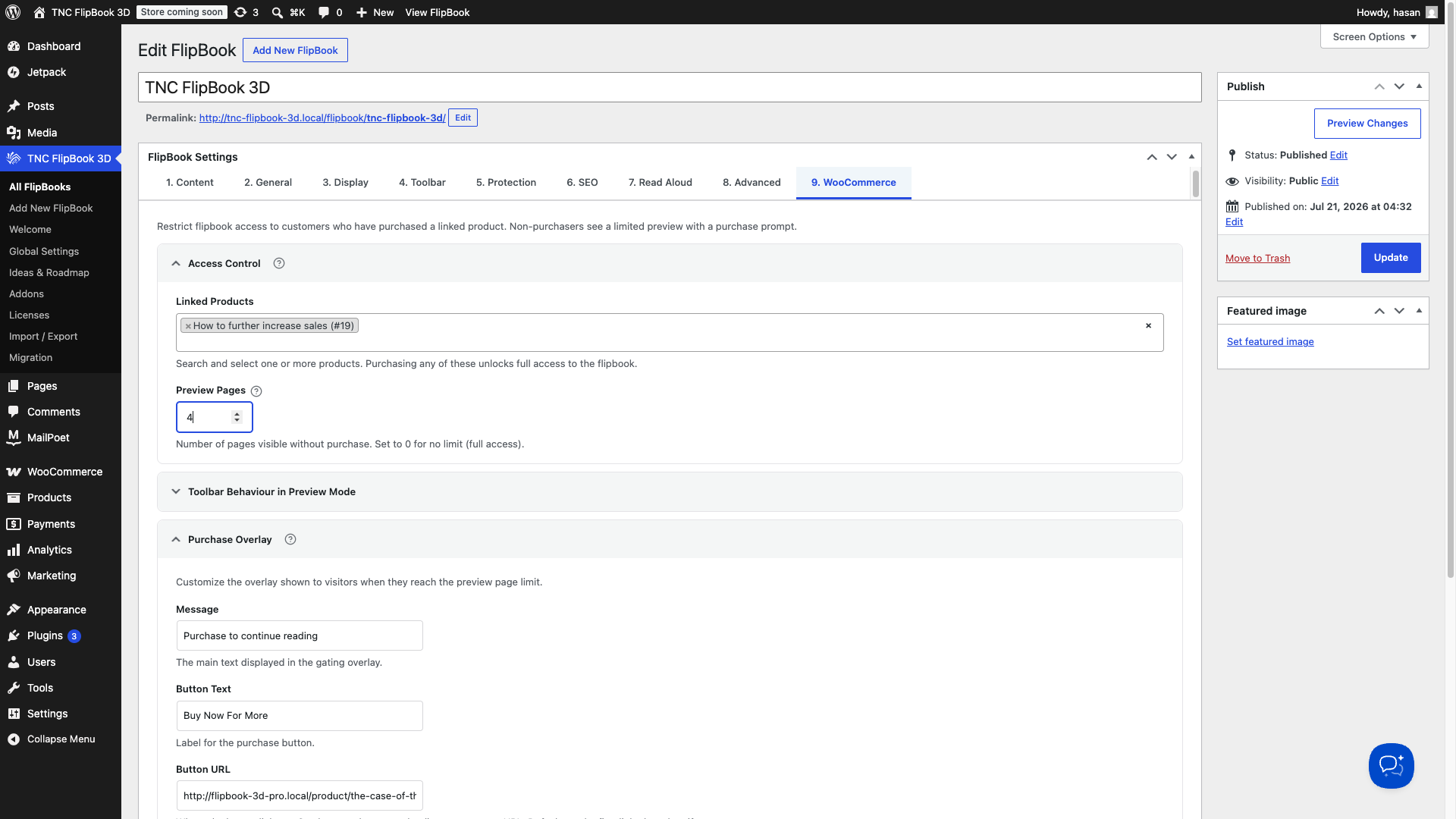
To create the most powerful shoppable experience, connect your FlipBook to WooCommerce and turn your catalog into a sales-ready product journey. Open your FlipBook settings and go to the WooCommerce tab, then enable gating and link the FlipBook to the WooCommerce product you want to sell. After that, set the preview page count and configure what happens after purchase. So, visitors can preview part of the content first and unlock the full FlipBook after checkout. This setup is ideal for E-books, catalogs, lookbooks, digital guides, and other content you want to sell with a smooth buying flow.
WooCommerce integration gives you full control over how visitors interact with your FlipBook before and after payment. You can allow free browsing of selected pages while keeping the full version behind a purchase. Perfect for exclusive lookbooks, member-only catalogs, premium product guides, or gated digital content. It helps you deliver a cleaner customer experience while also creating a clear path from interest to purchase.
Use Cases: Who Should Use Shoppable Catalogs?
The shoppable catalog feature is versatile enough to work across virtually every product-based business. Here are the most powerful use cases where it delivers the highest return.
Fashion and Apparel Brands: Seasonal lookbooks and clothing catalogs are a natural fit. Each outfit spread becomes a shoppable experience where visitors can tap any item they love and land directly on the product page to purchase it.
Furniture and Home Decor Stores: Room vignette photography translates beautifully into shoppable catalogs. A single room spread can have multiple hotspots on different furniture pieces, letting visitors explore and shop the entire room from one page.
Food and Beverage Companies: Restaurant menu PDFs become interactive order-ready experiences. Grocery brands can turn product catalogs into direct-to-cart shopping experiences with hotspots on every product.
Electronics and Tech Retailers: Specification sheets and product brochures become interactive demos where visitors click to learn more, compare specs, or jump directly to a purchase page.
Wholesale and B2B Suppliers: Trade catalogs become self-service ordering tools where business buyers can browse your full range and click through to request quotes or place orders on individual products.
Publishers and Magazine Brands: Editorial publications with sponsored products become shoppable editorial experiences where readers can buy the products they see featured in articles and fashion spreads.
Photographers and Artists: Portfolio books become direct sales tools where collectors and buyers can inquire about or purchase specific works directly from the portfolio.
Seasonal Campaigns: Hotspots are perfect for holiday brochures, event catalogs, launch collections, and limited-time offers because they let you send traffic directly to the most relevant product pages.
Along with this, TNC FlipBook 3D serves multiple niches effectively. You are welcome to explore its features and potential for yourself.
Why TNC FlipBook 3D is the Best Choice for Shoppable Catalogs?
There are other flipbook plugins available for WordPress, but none of them offer the full set of features that make shoppable catalogs truly work. Most competitors offer basic PDF viewing. Some offer simple link overlays. None offer the complete ecosystem of interactive hotspots, WooCommerce gating, stamped downloads, lead capture, content protection, AI read aloud, and SEO optimization that TNC FlipBook 3D delivers in a single $59 per year plan with everything included and no paid add-on surprises. There is also a free version available, you can try using that.
The 3D rendering engine powered by WebGL and Three.js also sets TNC FlipBook 3D apart visually. Your shoppable catalog feels like a real book, not a flat PDF. It looks like a real physical publication with realistic page curl, paper textures, flip sounds, and depth. That simple, familiar experience makes your catalog more enjoyable to explore. You can get TNC FlipBook 3D from here.
Promote Your Shoppable Catalog to Get Maximum Traffic
Creating a shoppable catalog is only the first step. Getting visitors to it is what drives sales. Here are the most effective ways to promote your shoppable catalog and grow the traffic that converts.
Share it as a lead magnet: Use TNC FlipBook 3D’s Lead Capture feature to gate access to your catalog behind an email signup. Visitors can access the full catalog by submitting their email, giving you a simple way to collect warm leads.
Embed it on your homepage: Do not hide your catalog on a buried product page. Embed it prominently on your homepage as a featured shopping experience. A 3D flipbook in the hero area of a homepage immediately communicates that your brand offers a premium experience.
Share the catalog URL on social media: The Deep Linking feature in TNC FlipBook 3D lets you share a URL that opens directly to a specific page in your catalog. Share direct links to your most popular product spreads on Instagram, Pinterest, Facebook, and LinkedIn. Each link takes followers straight to that product in your shoppable catalog.
Use it in email marketing campaigns: Include a screenshot of your catalog with a “Click to Browse” CTA in your email campaigns. The visual of a realistic 3D flipbook in an email is far more compelling than a standard product grid and drives significantly higher click-through rates.
Optimize the catalog page for SEO: Write a keyword-rich description of your catalog on the page where it is embedded. The TNC FlipBook 3D extracts full text from your PDF pages and makes them crawlable by search engines. So your product descriptions inside the catalog contribute to your organic search rankings.
Watch on YouTube
Final Thoughts
Your product catalog is one of your most effective marketing assets. It represents your brand, showcases your products, and communicates your value to every visitor who sees it. Turning it into a shoppable experience could fundamentally change how your customers discover and buy your products. Rather than leaving people with a static PDF, you give them a functional catalog they can use. They can browse, click, and shop in one place.
The best part is that you do not need a development team, a big budget, or weeks of setup time to make this happen. Your catalog is likely already designed. Your products are already in your store. You only need the right tool to make the whole experience feel complete and memorable.
Your catalog is ready. Your customers are waiting. Make it shoppable today.
Frequently Asked Questions
1. What is a shoppable catalog?
A shoppable catalog is an interactive digital magazine. Every product inside is clickable. You can browse and buy items right there. You never have to leave the catalog to search the store.
2. What is a hotspot and why is it important?
A hotspot is a clickable area over an image. It makes buying much easier. Shoppers can click a product they like. Then, they go straight to the product page or add it to their cart instantly.
3. Which plugin do I need to create a shoppable catalog in WordPress?
You just need the TNC FlipBook 3D plugin. It turns any standard PDF into a 3D interactive flipbook. You can add clickable hotspots easily. No coding or design skills are required.
4. How do I add a hotspot to my catalog?
First, go to the Advanced tab in your flipbook settings. Open the visual editor. Double-click on the page to add a hotspot. Drag it over your product. Finally, set up the action, like adding a link to your checkout page.
5. Can I connect my shoppable catalog to WooCommerce?
Yes, WooCommerce integration is fully supported. You can link your flipbook directly to a product. You can even set up free previews. This is great for locking premium content behind a checkout screen.
6. Who can benefit from using a shoppable catalog?
Any business selling products will love this. Fashion brands use it for lookbooks. Furniture stores show off room designs. Restaurants create interactive menus. Wholesalers even use it for quick ordering.
7. How can I promote my shoppable catalog to get more traffic?
Put it right on your homepage for everyone to see. You can also use it to collect emails as a lead magnet. Share direct links to specific pages on social media. It also works great in your email marketing campaigns.
