


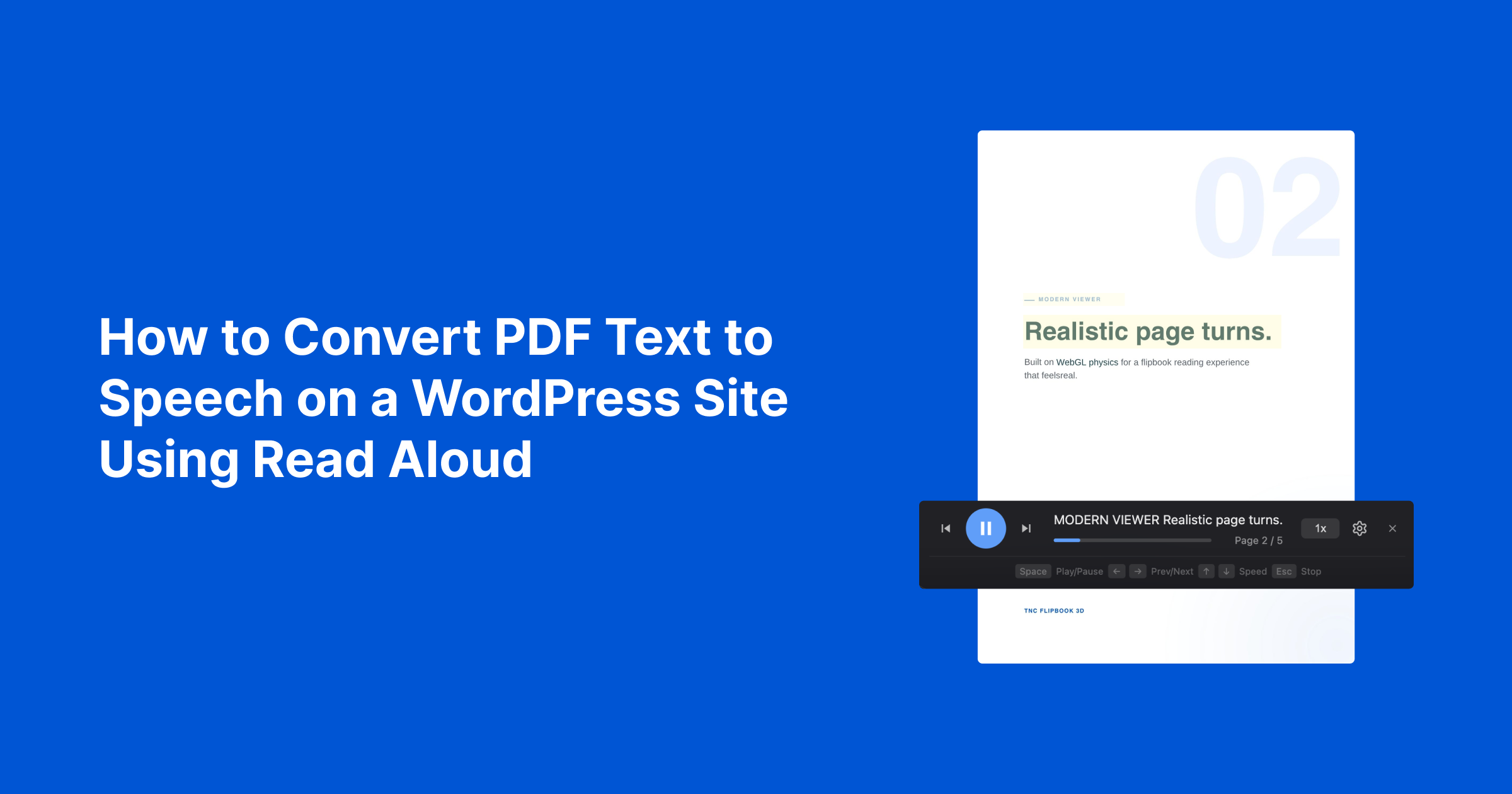
Need to review a document while driving, working, or doing other daily tasks? Sometimes you need to multitask while your eyes need a break or listening simply works better for you. The problem is that PDFs are designed for reading rather than listening. When you are away from your desk or cannot stay focused on the screen, it is hard to review important documents. Text to Speech fixes this. It turns your documents into clear and natural speech so you can keep learning or catching up while you walk, travel, or do other work. As it reads, each sentence is highlighted so you can follow along easily and never lose your place.
Converting PDF text to speech on a WordPress site is easier than you might think. You only need one WordPress flipbook plugin, and that is TNC FlipBook 3D. In this plugin, the text-to-speech feature has been named Read Aloud. It is more solution-oriented and offers smoother functionality. This guide explains everything you need to know about the Read Aloud feature, including how it works, why it’s valuable, and where it can be used. Let’s explore this excellent feature in detail and learn how to convert PDF text into speech on a WordPress site.
What is Read Aloud?
Read Aloud is a text-to-speech feature of TNC FlipBook 3D that converts written text into realistic audio. Instead of reading, people can listen to PDFs and ebooks with natural-sounding AI voices. It makes content easier to follow and more engaging.
Small text can strain the eyes, and a busy schedule often leaves little time for sitting down to read. Each sentence is highlighted on the screen as the audio plays, which allows you to follow the content without missing anything. It makes learning and reading easier with more flexibility and convenience. You can view the live demo here.
Common Problems with Traditional PDF Readers
Traditional PDF readers were designed for displaying documents. This is not intended to provide a comfortable listening experience. Most offer only basic text-to-speech features with robotic voices that sound unnatural and become uncomfortable during long sessions. This gives users less control over reading speed and makes the experience less enjoyable.
People with visual or reading difficulties often struggle to use these PDF readers. They also face challenges with scanned PDFs, complex layouts, and accessibility requirements. Most PDF readers lack realistic AI voices and do not highlight the text while the audio plays. This makes it harder to stay focused and turns reading into a boring and difficult experience.
How Read Aloud Solves These Problems?
Read Aloud makes reading much easier by turning written text into clear and natural-sounding speech. It sounds more like a real person instead of a robotic voice. This makes it more comfortable to listen even to long documents.
Users can choose from different AI voices, change the reading speed, and listen in multiple languages. It also highlight each sentence as it is spoken so you can easily follow along. This gives you a simple and enjoyable way to listen and understand any document.
How to Convert Text to Speech with TNC FlipBook 3D Read Aloud (Step-by-step Process)
Step 1. Install TNC FlipBook 3D:
First, you need to install TNC FlipBook 3D on our WordPress site. This plugin ensures that you can create impressive 3D flipbooks from your PDF. This is one of the most convenient and feature-rich plugins for creating 3D flipbooks on WordPress websites. You can get TNC FlipBook 3D from here.
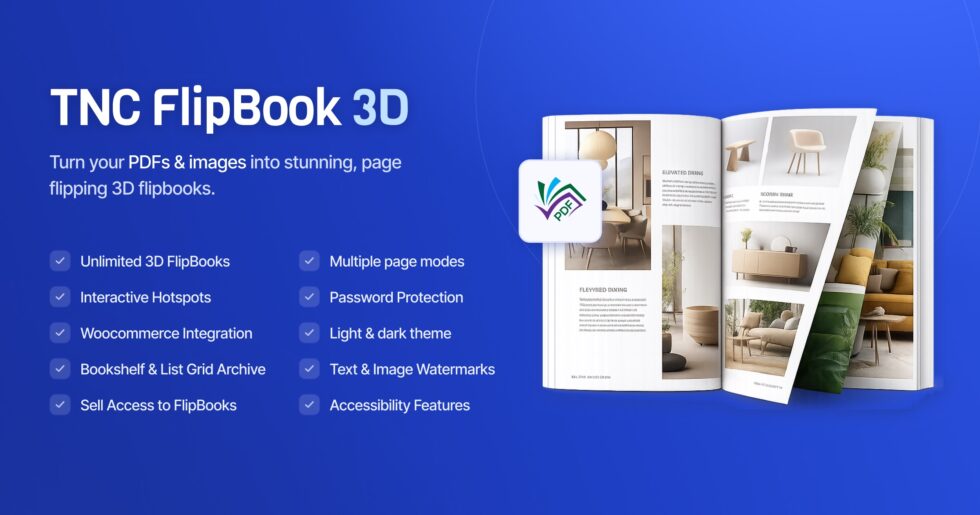
Step 2. Create Flipbooks From Your PDFs:
- Access TNC FlipBook 3D: Open TNC FlipBook 3D in your WordPress dashboard and click “Add New FlipBook”.
- Import Your PDF: Give your flipbook a name. Choose and upload your eBook or PDF file from your computer that you want to convert into a flipbook.
- Customize Flipbook Appearance (Optional): TNC FlipBook 3D is built for full control over look and feel. You can choose a predefined theme. Customize the background, colors, page-turning scrolling effects, and more. You can also add your logo or favicon. You can control which buttons or features are visible in your FlipBook toolbar.
- Generate/Publish Your FlipBook: You will see the “Publish” button, click Publish to complete the flipbook creation process. Then click “Preview” to see how the flipbook looks on your website.
- Embed/Share Your FlipBook: TNC FlipBook 3D will provide you with an embed code. Copy this code and paste it into your web page where you want to display the flipbook. You can also get a direct link to share via email, social media, or other channels.
- Preview Your FlipBook: After doing all these settings and changes, simply preview your FlipBook to see the results.
After creating your FlipBook, the Read Aloud feature is enabled by default so visitors can start listening to your content right away.
Step 3. Access Premium AI voices
- For more natural and realistic AI voices, go to TNC FlipBook 3D → Global Settings → Integrations → Text to Speech.
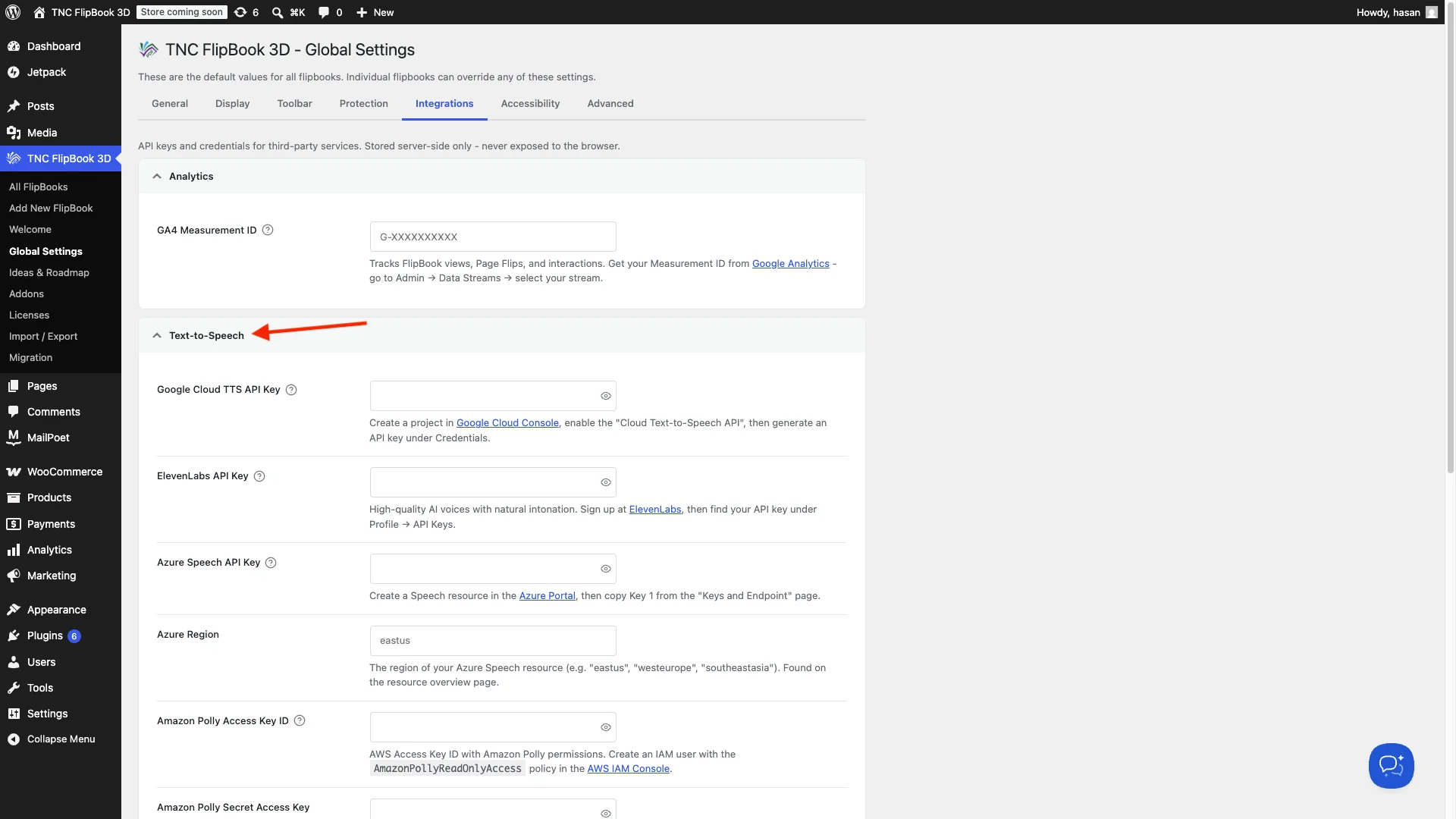
- Add the API key for your preferred provider, such as OpenAI, ElevenLabs, Google Cloud TTS, Azure Speech, or Amazon Polly. Save your API key after adding your preferred voice provider.
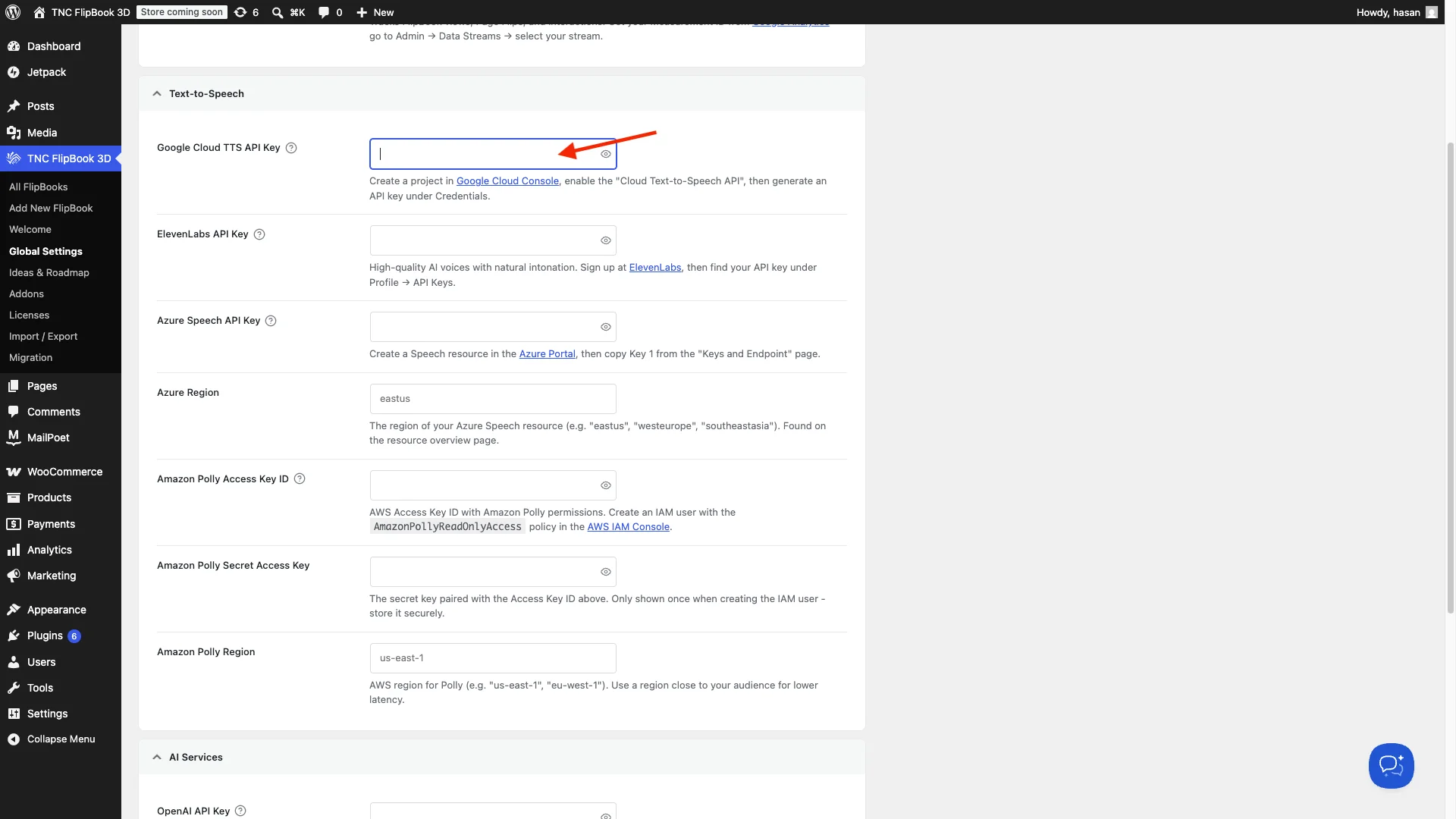
- Open the Read Aloud tab in your TNC FlipBook 3D settings to customize the experience.
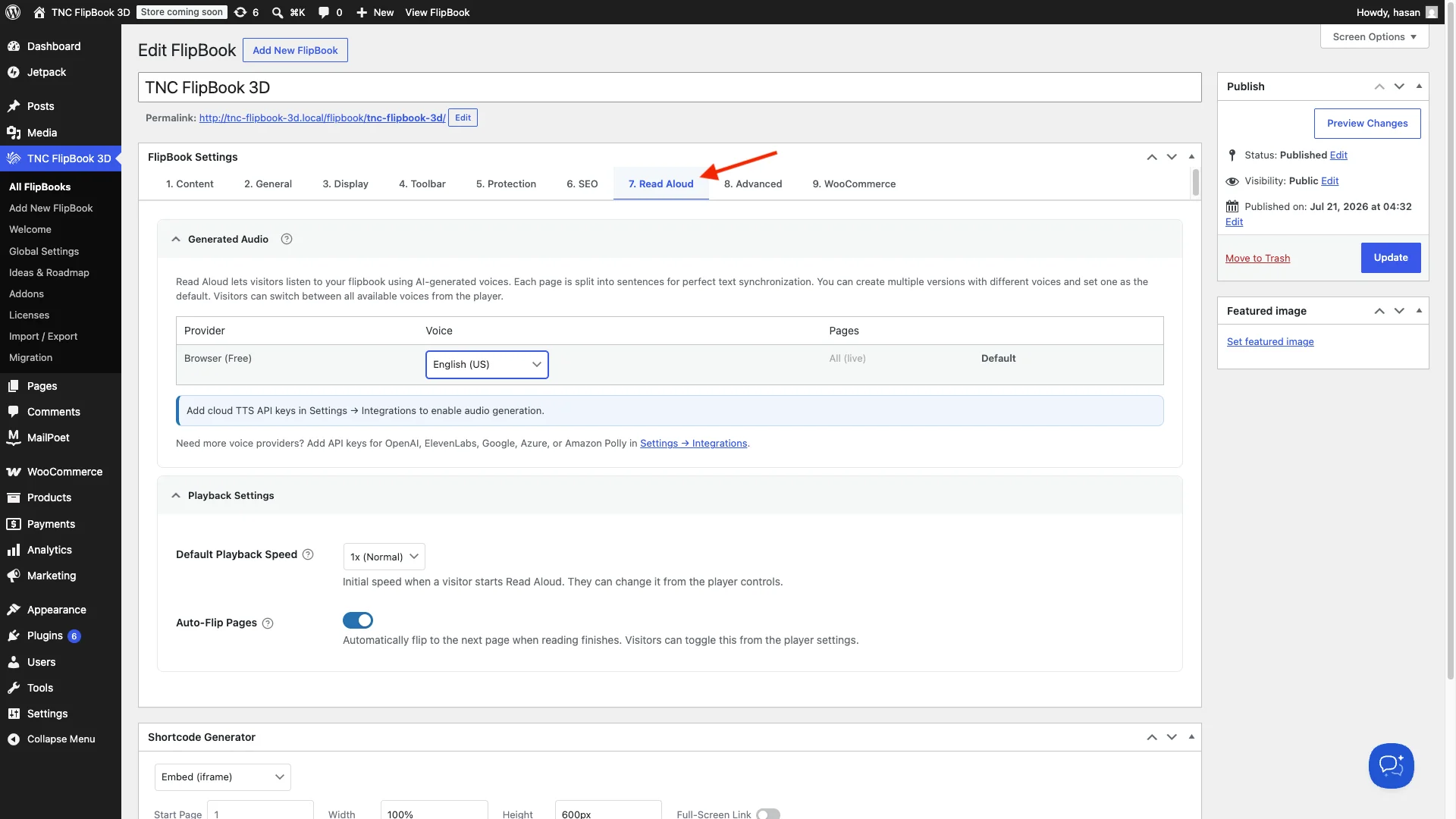
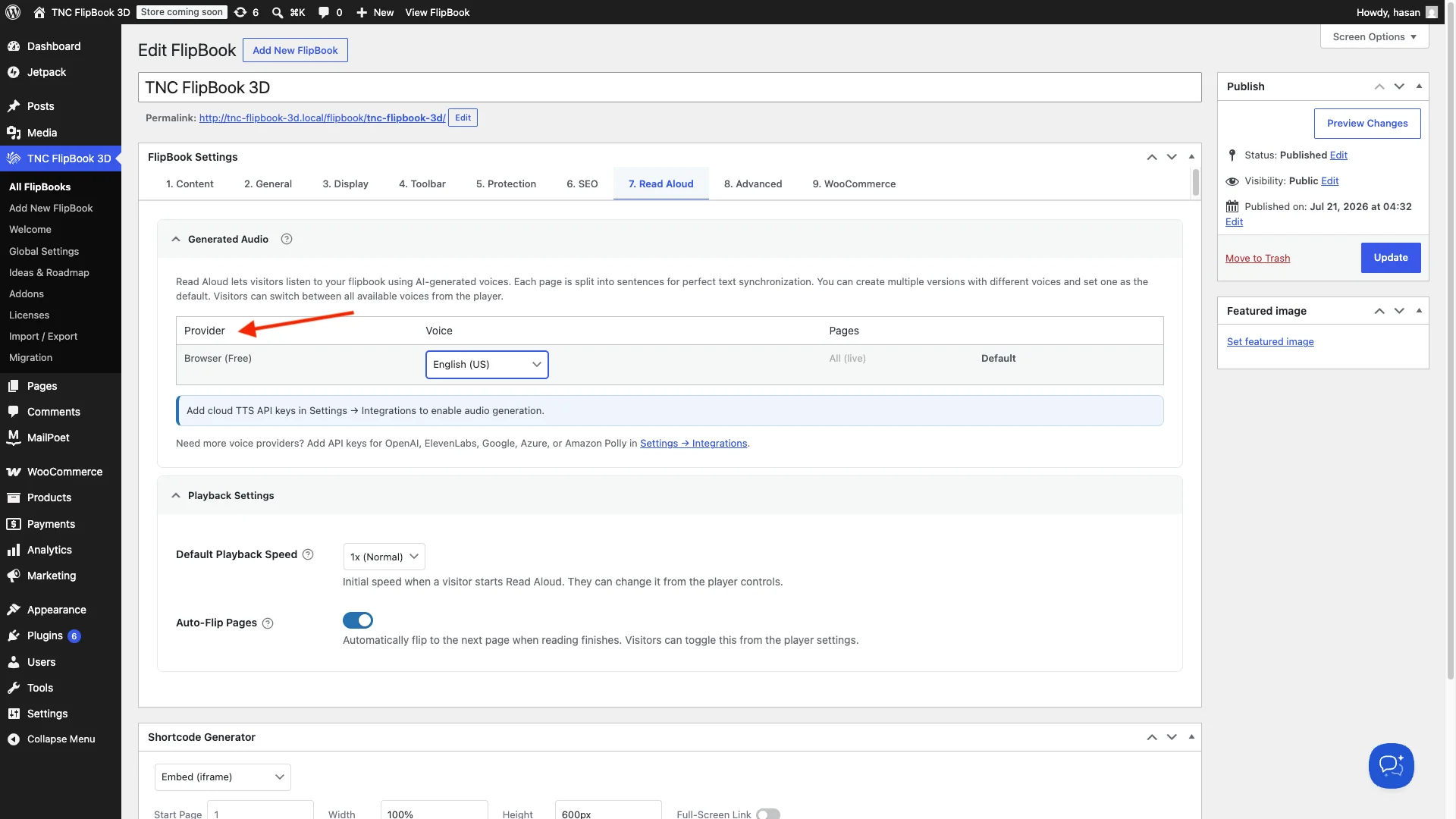
- Choose your preferred voice provider, select a voice, and adjust the Default Playback Speed.
- Enable Auto Flip Pages to move to the next page automatically after the narration ends.
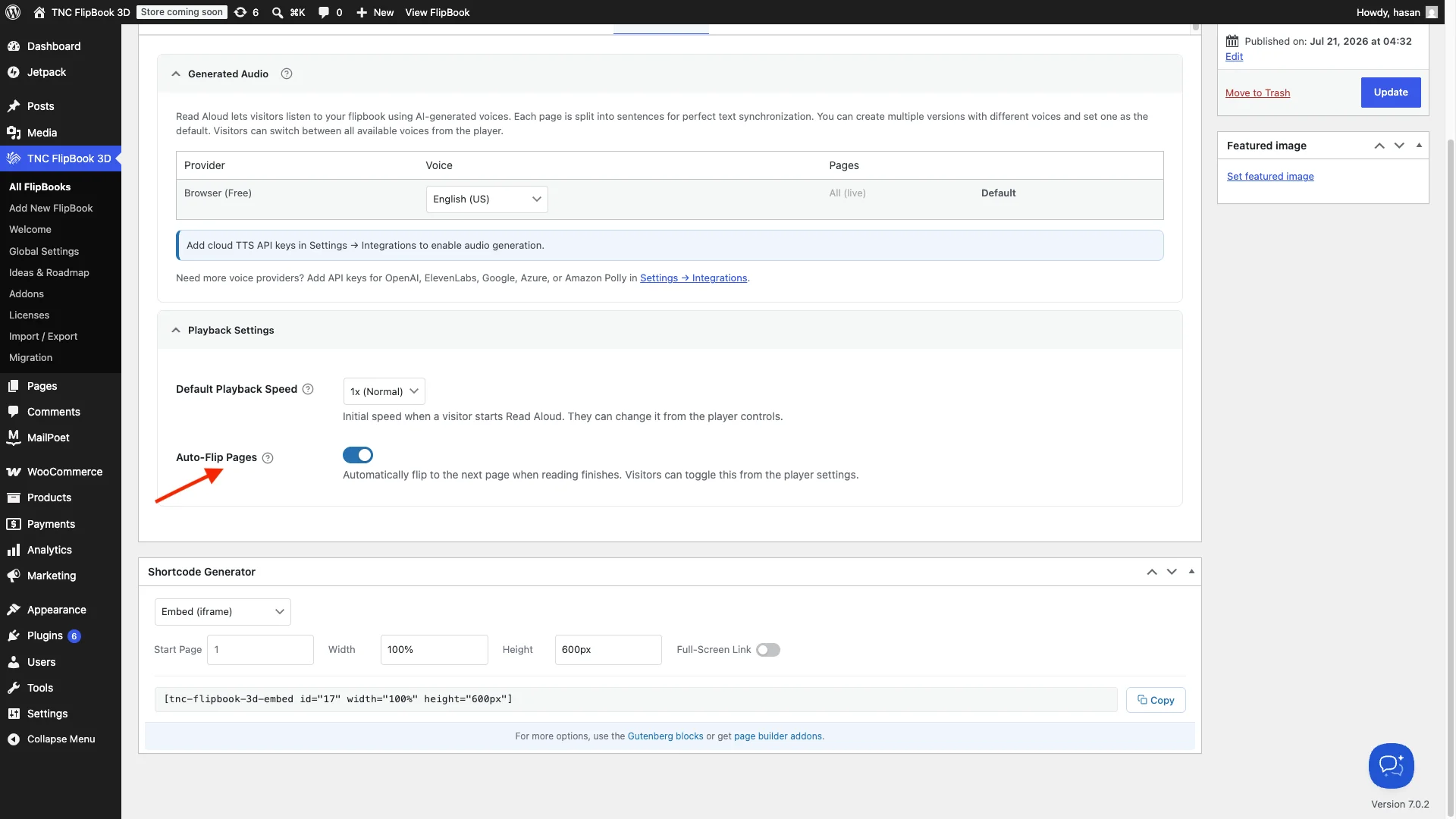
That’s it. After configuring all the settings according to your needs, click Update, and your flipbook will then be ready for use. Start using premium AI voices in your flipbook for a smoother and more enjoyable listening experience. If you want to hear premium AI voices, visit here.
Why Choose TNC FlipBook 3D Read Aloud?
Let your PDF speak for itself. Here’s what makes this feature different:
Sentence-by-Sentence Highlighting
As the AI reads your content aloud, each sentence gets highlighted on screen in real time. This helps users read the text while listening. It makes the content easier to follow and understand.
Adjust Playback Speed
Choose the playback speed that works best for you. Slow it down for easier understanding or speed it up to finish long documents more quickly.
Auto-Flip Pages
Turn on Auto-Flip Pages to automatically move to the next page when the current page finishes playing. This creates a smooth, hands-free listening experience without needing to flip pages manually.
Try Multiple Voices Before You Decide
You can test different voice options directly on the Live Preview page. ElevenLabs, OpenAI, Amazon Polly, Azure Speech, Google Cloud TTS, and Browser to hear exactly how each one sounds before picking the right fit for your site.
Makes Content More Accessible
This feature supports people with visual difficulties and anyone who likes to multitask while making your FlipBook content easier to enjoy.
Watch the video preview for a more interactive experience.
Who Should Use Read Aloud?
Read Aloud is useful for anyone who wants to make reading easier, faster, and more accessible. Here are some of the most common ways people use it.
Students and Educators: Turn textbooks, study notes, research papers, and class materials into audio. Students can listen while following highlighted text, making it easier to stay focused.
Businesses and Professionals: Listen to reports, contracts, proposals, training documents, and presentations while working or traveling.
Authors and Publishers: Add audio to ebooks, magazines, and digital publications so readers can choose to listen instead of read. Creating a more engaging reading experience.
Schools and Libraries: Make learning materials more accessible by giving students and visitors the option to listen to books, PDFs, and educational resources.
Content Creators and Bloggers: Let visitors listen to articles instead of reading them. Helping keep people on your website longer and improves the overall user experience.
Busy Professionals and Everyday Readers: Listen to PDFs, ebooks, documents, and web pages while driving, walking, exercising, cooking, or relaxing, making it easier to fit reading into a busy day.
Companies and Organizations: Make guides, manuals, employee handbooks, and customer documents easier to understand by offering a simple audio version that everyone can access.
Watch on YouTube
Final Thoughts
Read Aloud changes the way people use PDFs and other digital content. Features like sentence highlighting, multiple voice choices, adjustable speed, and support for different languages make reading more enjoyable and flexible. TNC FlipBook 3D brings all of these benefits to your WordPress website in one simple solution.
You can integrate realistic AI voices to make the reading experience more enjoyable. This helps you create digital publications that are easy to use and accessible to everyone. So, why wait? Give it a try today.
Frequently Asked Questions
Is TNC FlipBook 3D Read Aloud suitable for all types of PDF documents?
Yes, it works smoothly with PDFs, ebooks, brochures, reports, and interactive flipbooks of nearly any length or format.
Can I choose different languages or voice styles?
Absolutely. TNC FlipBook 3D Read Aloud supports multiple languages and a variety of natural-sounding AI voices to match your content and audience.
Is this tool helpful for accessibility purposes?
Yes, it is especially valuable for visually impaired users, people with dyslexia, and anyone who prefers or needs audio-based content consumption.
Will the AI voice sound robotic?
No. The voices are built using advanced neural speech technology, resulting in natural tone, rhythm, and expression that feels genuinely human.
Do I need technical skills to use it?
Not at all. The process is designed to be simple, upload your file, choose your voice settings, and play.
