


Every serious marketer knows that a healthy email list is worth more than any social media following. Algorithm changes can cause you to lose followers overnight, but your email list remains yours permanently. The fastest and most reliable way to grow that list is to offer something genuinely valuable in exchange for email addresses. A PDF lead magnet is one of the oldest tricks in digital marketing. However, most people are still doing it wrong. They upload a PDF, attach a contact form right before it, and wonder why no one is signing up.
The problem is not the idea. The problem is the execution. A boring form in front of a static PDF file is not compelling enough to make anyone hand over their email address in this era. This guide will show you the right way to use a PDF as a lead magnet in WordPress. You can set up an automated email collection system that runs entirely on its own, allowing you to focus on other tasks.
What is a PDF Lead Magnet and Why Does It Work?
A lead magnet is anything you offer for free in exchange for a visitor’s contact information. It works because it creates a simple, honest trade. Visitors get something immediately useful, and you get permission to stay in touch with them.PDF lead magnets work particularly well for three reasons.
- First, a PDF feels tangible. It is a real document a person can save, read later, and return to. Unlike a promise of future content, a PDF delivers value the moment someone downloads it.
- Second, PDF lead magnets are extremely easy to create. You already have expertise in your field, and that expertise turns into a PDF faster than almost any other content format.
- Third, PDF lead magnets attract the right audience. Someone who downloads your PDF on a specific topic is already interested in that exact subject. These are not random visitors. These are warm leads who have self-selected as potential customers.
The most effective types of PDF lead magnets are practical guides that teach a specific skill. These include checklists for streamlining processes, time-saving templates, reports containing research or data, resource libraries, and e-books that cover a topic in greater detail than a standard blog post.
Why Traditional PDF Gating Fails?
Most WordPress sites still gate PDFs the old way. They put a form on a landing page, then send the visitor to a download link or email the file after submission. This creates friction and delays. The visitor does not see the value before giving their email. Many leave without converting.
Even when they do convert, the PDF sits as a flat file. There is no engagement tracking. No way to keep the visitor on your site. No chance to show more offers or content. You lose the momentum right when interest is highest.
Modern Solution: Convert Your PDF into an Interactive Flipbook to Serve as a Lead Magnet
The approach that consistently delivers the highest conversion rates combines three elements. An engaging, interactive reading experience that hooks visitors from the first page. A strategically positioned email gate that appears at the moment of peak interest. And a seamless automated system that handles every lead without any manual work.
The smarter approach is to transform your PDF into an interactive 3D FlipBook and gate it with a lead capture form. This keeps visitors on your site, shows them the value upfront, and collects emails at the moment of highest intent. With TNC FlipBook 3D and its Lead Capture add-on, you can gate your flipbook before, during, or after the reading experience. You decide when the form appears. You control how much of the content is visible before the email is submitted. This increases trust and conversions.
How to Use a PDF as a Lead Magnet in WordPress Using TNC FlipBook 3D (Step-by-step Process)
Step 1. Install TNC FlipBook 3D
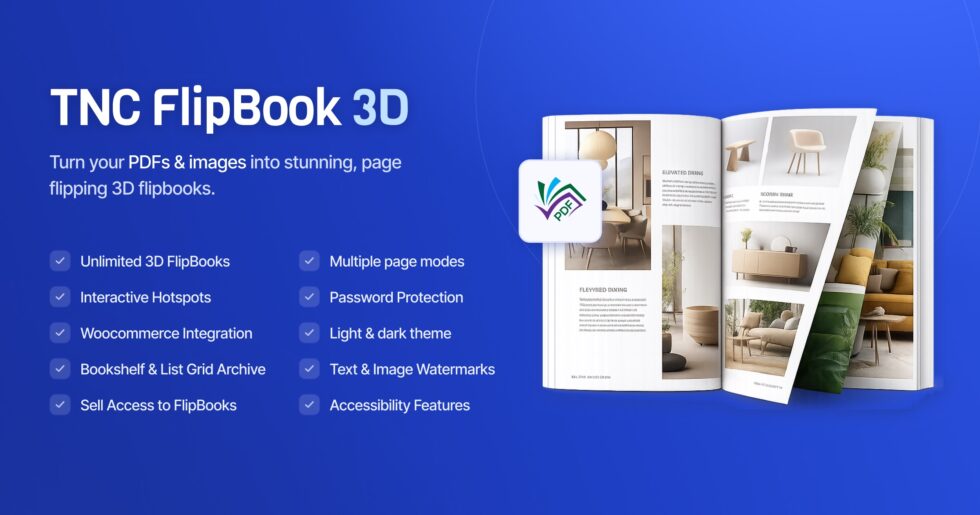
First, we need to install TNC FlipBook 3D on our WordPress site. This plugin ensures that you can create impressive 3D flipbooks from your PDF. This is one of the most convenient and feature-rich plugins for creating 3D flipbooks on WordPress websites. You can get TNC FlipBook 3D from here.
Step 2. Install Lead Capture Addon for TNC FlipBook 3D
The best part about setting up this system is that the Lead Capture tool is included completely free with TNC FlipBook 3D. Simply download it from the TNC FlipBook account dashboard using the email address you used when purchasing the plugin. After that, install and activate the add-on alongside your main plugin in your WordPress dashboard to unlock the email collection features.
Step 3: Choose a Targeted Topic & Design Your PDF Lead Magnet
Start by picking a highly specific topic that solves an urgent problem for your ideal audience. Skip broad ideas and focus on answering the most common questions your customers ask before buying. Once your topic is set, easily design a clean 5 to 25 page document using accessible tools like Canva, Google Docs, or Word. Add your branding, include a clear call to action at the end, and save the final file.
Step 4. Create Flipbooks From Your PDFs
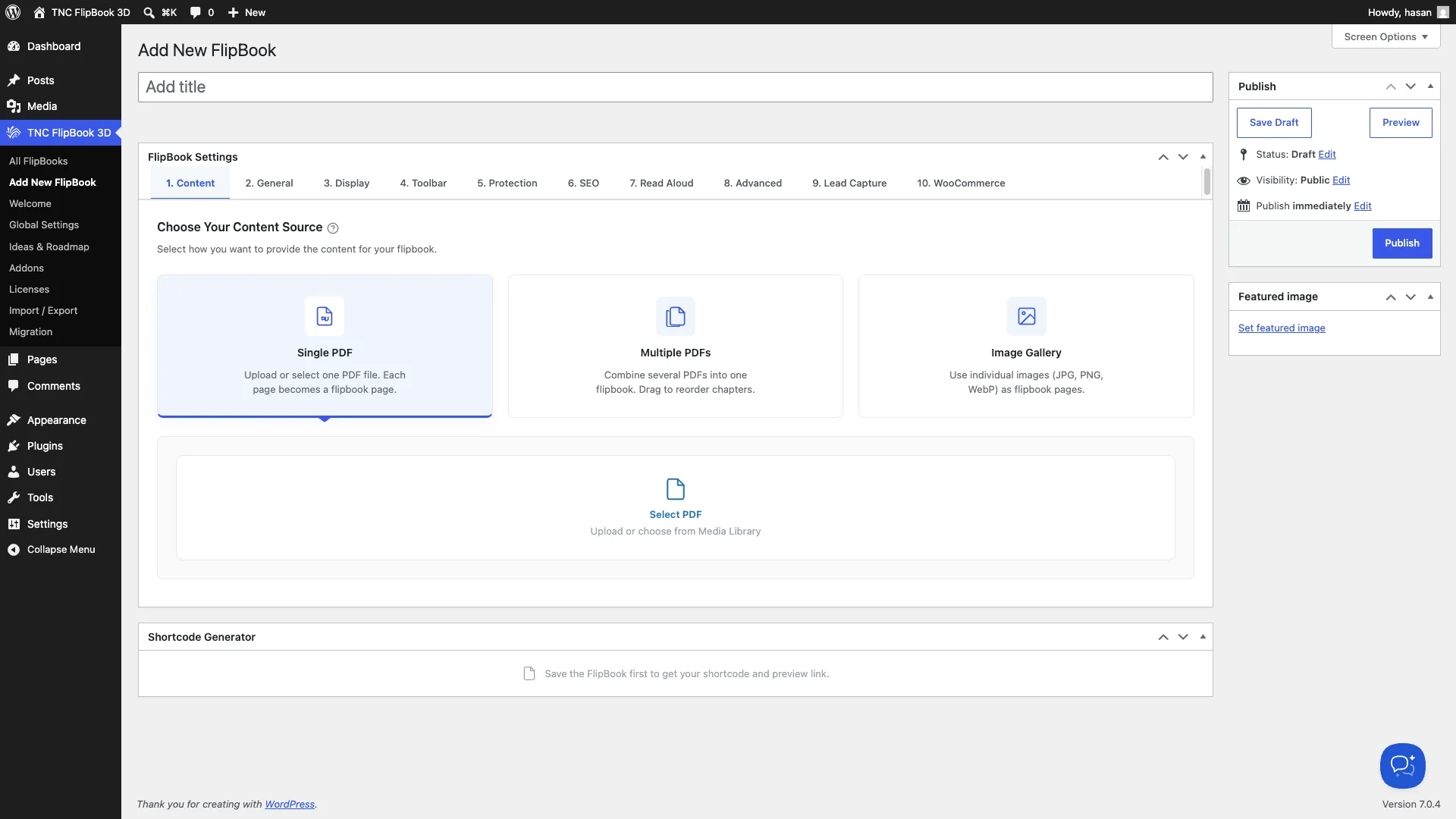
- Access TNC FlipBook 3D: Open TNC FlipBook 3D in your WordPress dashboard and click “Add New FlipBook”.
- Import Your PDF: Give your flipbook a name. Choose and upload your eBook or PDF file from your computer that you want to convert into a flipbook.
- Customize Flipbook Appearance (Optional): TNC FlipBook 3D is built for full control over look and feel. You can choose a predefined theme. Customize the background, colors, page-turning scrolling effects, and more. You can also add your logo or favicon. You can control which buttons or features are visible in your FlipBook toolbar.
- Generate/Publish Your FlipBook: You will see the “Publish” button, click Publish to complete the flipbook creation process. Then click “Preview” to see how the flipbook looks on your website.
- Embed/Share Your FlipBook: TNC FlipBook 3D will provide you with an embed code. Copy this code and paste it into your web page where you want to display the flipbook. You can also get a direct link to share via email, social media, or other channels.
- Preview Your FlipBook: After doing all these settings and changes, simply preview your FlipBook to see the results.
Step 5. Configure Your Lead Capture From Global Settings
Go to TNC FlipBook 3D, then Global Settings, and click the Lead Capture tab. These global settings become the default for every FlipBook you create. It saves you time when setting up multiple lead magnets.
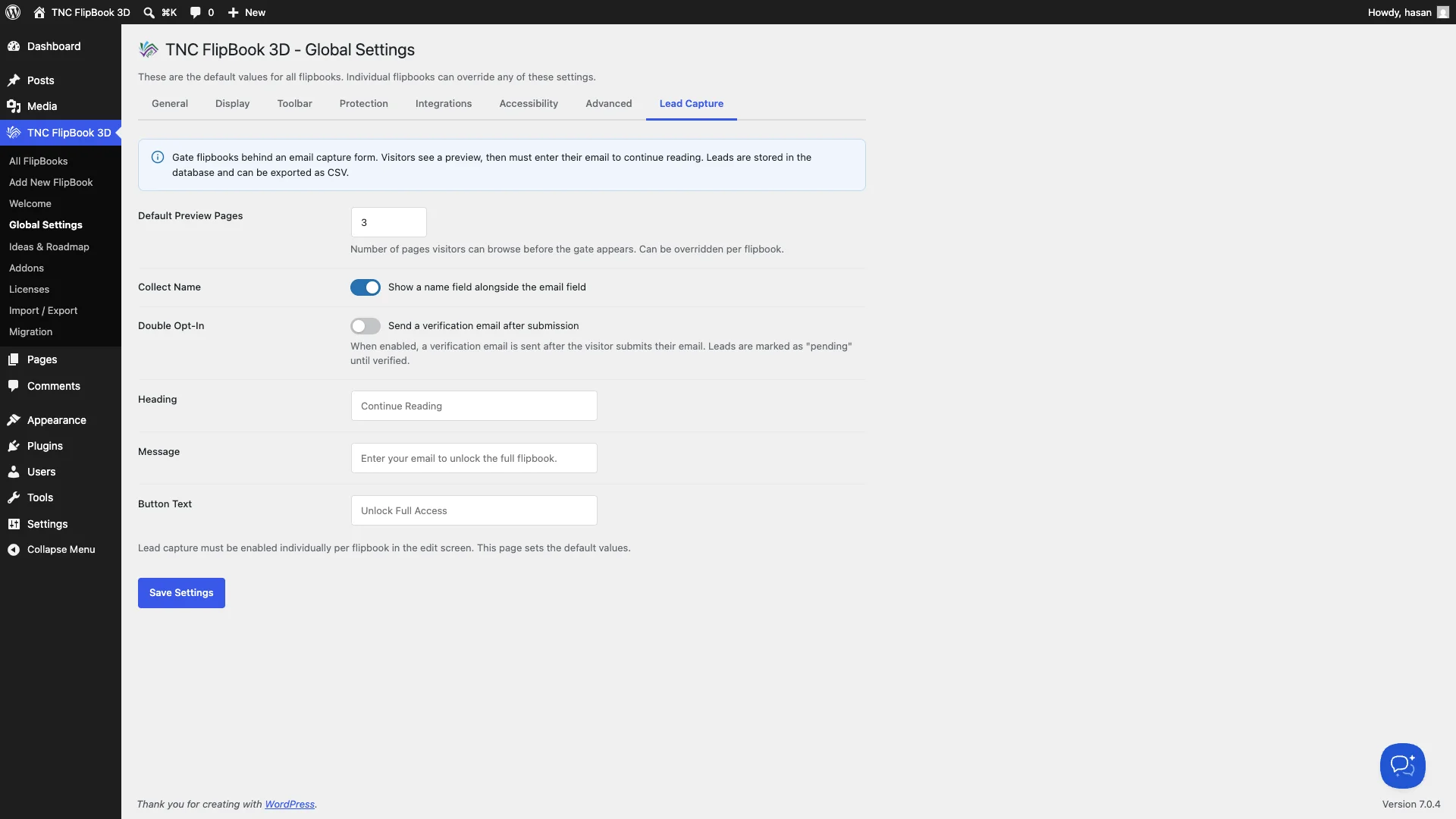
Default Preview Pages: Default Preview Pages sets how many pages visitors can read before the email gate appears. Three pages is the default and works well for most documents. You can increase this for longer guides where more preview builds more desire, or reduce it for short documents where giving away too much removes the incentive to subscribe.
Collect Name: Collect Name Field lets you capture both name and email if toggled on. Names allow you to personalize your email sequences with each subscriber’s first name, which consistently improves open and click-through rates.
Double Opt-In: Double Opt-In sends a verification email to every new subscriber before confirming their subscription. This stops fake signups, keeps your email list healthy, and makes sure you follow privacy rules by getting clear permission before sending messages.
Heading: This is the headline that appears on the gate form. Write something specific and benefit-focused that references the content the visitor is reading.
Message: This is the field where you ask visitors to share their email address. It is a simple but important part of your form that lets you easily collect contact details and grow your list.
Button Text: Button Text lets you customize the submit button label. “Get Instant Access” and “Unlock Full Content” consistently outperform a plain “Submit” button.
Click Save Settings when done. Lead capture must be enabled individually per flipbook in the edit screen. This page sets the default values.
Step 6: Enable Lead Capture For Specific Flipbook in the Flipbook Settings
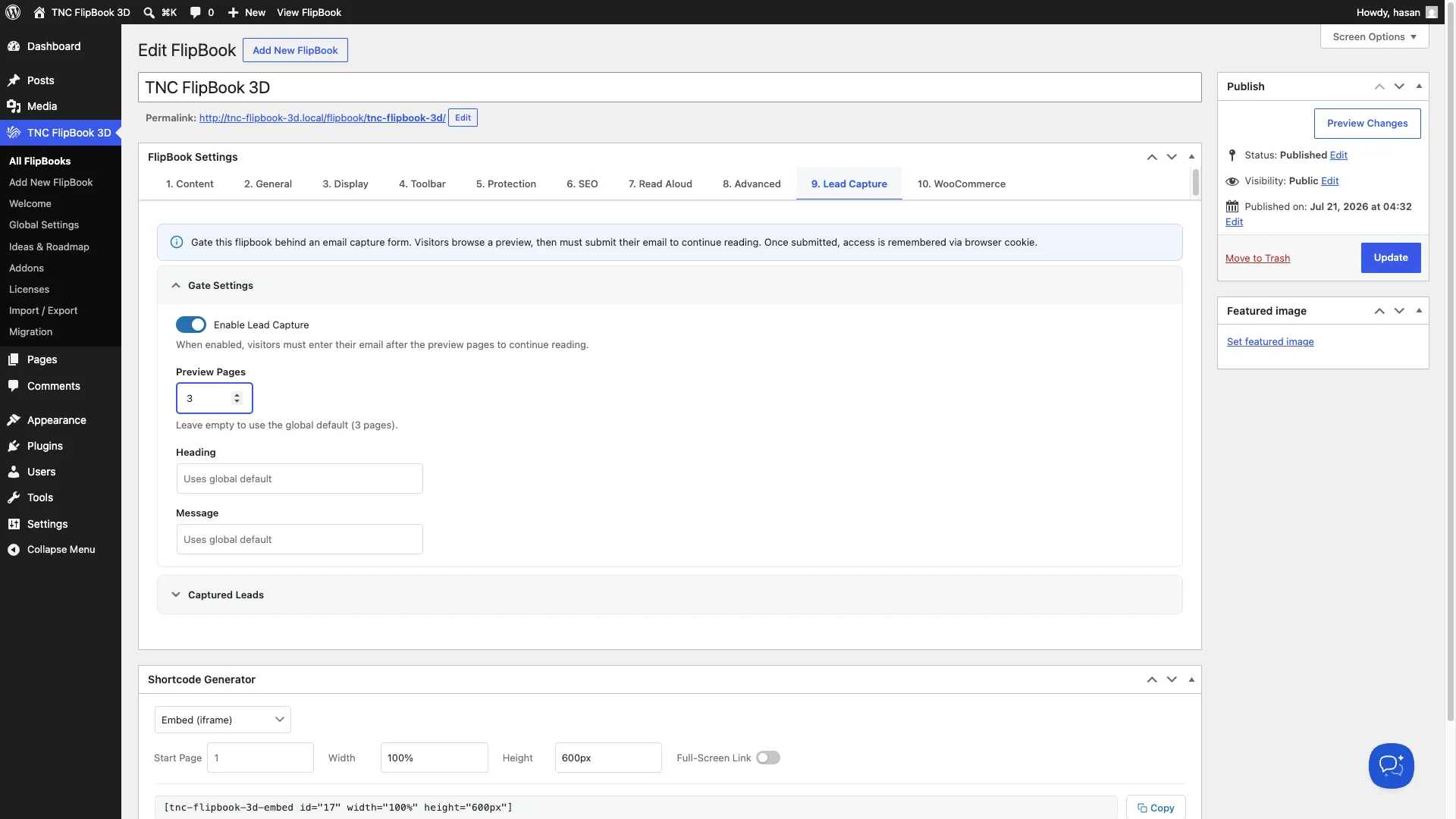
Go to TNC FlipBook 3D and open your flipbook settings. Then navigate to the Lead Capture tab within the editor. Here, you will find the gate settings click on it. Next, enable Lead Capture for your flipbook. If you do not wish to use the global preview page and require a different number for this specific document, please change the global preview page number according to your needs. You can also customize or modify the heading text and message content to refer to this specific document by its name. After doing all these settings, click update and simply preview your Flipbook to see the results.
Step 7: Test the Complete Visitor Experience
Before sending any traffic to your lead magnet page or post, test the entire flow yourself. Visit the page while logged out of WordPress, or use an incognito browser window so you experience exactly what a new visitor sees.
Flip through the preview pages and confirm the reading experience feels smooth and engaging. Reach the email gate and confirm the form heading and button text appear correctly. Enter a test email address and submit the form. If double opt-in is enabled, check that the verification email arrives and that clicking the confirmation link unlocks the full document. Confirm that your test lead appears in TNC FlipBook 3D > Lead Capture in your dashboard with the correct status.
Test on both desktop and mobile. A significant portion of your visitors will engage with your lead magnet on a phone. The flipbook experience needs to be just as smooth on a small screen as it is on a large one.
Step 8: Manage and Export Your Leads
Every email captured through your FlipBook gate is stored securely inside your WordPress database. To view your captured leads go to TNC FlipBook 3D > Lead Capture. You will see a complete table showing each subscriber’s email address, name if collected, the FlipBook they signed up through, subscription date and time, and their confirmation status if double opt-in is enabled.
When you are ready to add your leads to your email marketing platform click the Export to CSV button. The plugin generates a clean CSV file containing all your lead data. Import this file directly into Mailchimp, ConvertKit, ActiveCampaign, HubSpot, MailerLite, Klaviyo, or any platform that accepts CSV imports.
So, thats it. The easiest and most effective method to collect leads to your WordPress website.
Why This Approach Beats Every Other WordPress Lead Generation Method?
Most WordPress lead generation setups rely on popup forms, sidebar widgets, or inline forms that interrupt the visitor experience. These tools have their place, but they create a fundamental problem. They ask for an email address before delivering any value.
TNC FlipBook 3D approach inverts this entirely. Value comes first. The visitor reads your content, experiences your expertise, and builds genuine interest in what you have to share. The email gate appears at exactly the moment when that interest is highest. The result is a higher conversion rate with a more engaged subscriber list.
Every lead in your database chose to subscribe because they were already reading something they found genuinely useful. These are not people who clicked past a popup to make it disappear. These are people who read your work, wanted more of it, and actively chose to stay connected. That difference in subscriber quality shows up in every open rate, click rate, and conversion rate downstream.
Drive Traffic to Your Lead Magnet Page
A perfectly built lead magnet generates zero subscribers if nobody visits it. Here are the most effective ways to drive consistent traffic to your PDF lead magnet on WordPress.
Place it prominently on your homepage: Your lead magnet should be impossible to miss for anyone who visits your website. Feature it in your homepage hero, in a sticky header bar, or in a prominent sidebar widget on your blog.
Write blog posts that connect to the PDF topic: Create two or three blog posts addressing problems closely related to your PDF’s subject. Include a natural call to action that points readers to the lead magnet page. Visitors who finish a related article are warm prospects already engaged with your expertise.
Share the flipbook on social media: Share interactive flipbook preview to every social platform where your audience spends time. A realistic 3D flipbook image stops the scroll far more effectively than a flat document icon or a stock photo.
Add it to your email signature: Every email you send is a passive promotion opportunity. Include a single line in your signature mentioning your free PDF and linking to the lead magnet page.
Optimize the page for search engines: Write a descriptive, keyword-rich meta title and description for your lead magnet page. TNC FlipBook 3D’s SEO addon extracts the full text from your PDF pages and makes them crawlable by search engines. It means the content inside your flipbook contributes to your organic search rankings.
Final Thoughts
Building an email list with a PDF lead magnet in WordPress does not have to be complicated or expensive. With the right approach, a focused and valuable PDF plus an engaging interactive reading experience can turn visitors into leads. Add a well placed email gate and you get a lead generation system that runs completely on autopilot.
TNC FlipBook 3D and its Lead Capture Addon give WordPress site owners exactly the tools they need to make this work. The entire system is designed to be set up once and run indefinitely without ongoing maintenance. The setup takes a single afternoon. The email list it builds compounds in value every week from that point forward. Your highest-converting lead magnet is just a Publish button away.
FAQ
Q: What makes a PDF lead magnet effective for building an email list?
A: A PDF lead magnet works because it offers immediate and tangible value in exchange for contact information. It attracts an audience already interested in your specific topic, making them warm leads for your business.
Q: Why should I use an interactive flipbook instead of a standard PDF download?
A: Traditional PDF gating creates friction by asking for an email before providing any value. An interactive flipbook keeps visitors engaged on your site and allows them to preview the content first, which builds trust and significantly increases conversion rates.
Q: How do I gate my PDF content using TNC FlipBook 3D?
A: You can use the Lead Capture addon that comes with TNC FlipBook 3D. It allows you to display an email collection form before, during, or after the reading experience. It gives you full control over when the gate appears.
Q: Is the Lead Capture addon an extra purchase?
A: No, the Lead Capture tool is included completely free with TNC FlipBook 3D. You just need to download it from your account dashboard and install it alongside the main plugin.
Q: Where do the collected email addresses go and how do I use them?
A: All captured leads are securely stored in your WordPress database. You can view them in the plugin dashboard and easily export them as a CSV file to import into email marketing platforms.
